Set up your Gemini API key
Your personal Gemini key powers video understanding and AI conversation. A YouTube Data API key is a separate credential for search; you do not need to supply one when the configured project search service is available. Never interchange these keys.
Choose your Google account
Open Google AI Studio → API keys and sign in with the Google account whose project and quotas you want to use.
Create a key in your own project
Select Create API key, give it a recognizable name and select or create the intended project. Account eligibility and model availability vary. Do not enable billing if you only want to use the free tier.
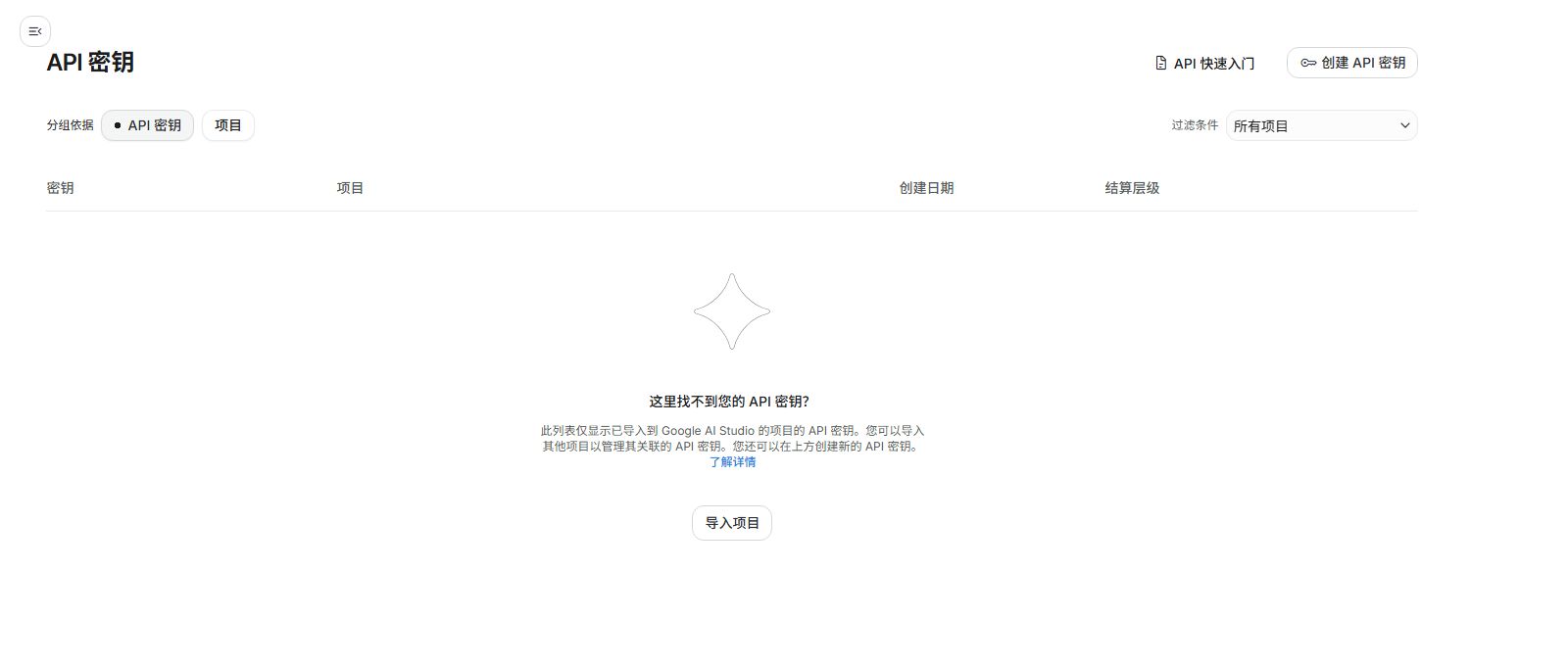
Reference capture in Chinese. “创建 API 密钥” means “Create API key.” Console wording and layout can change. Save it in TubePal
Copy the generated key into Settings → Gemini API key and save. Select a model available to that project. Choose the Live model separately for voice. Google sign-in to TubePal does not automatically provide a Gemini key.
Check usage, not just connectivity
A 429 response can mean a rate or quota limit. A permission error may mean the wrong key, API restriction, region or model access. Check the owning project in AI Studio before repeated retries. Free tier is not unlimited.
Optional: your own YouTube search key
- Open Google Cloud Console and select the intended project.
- Enable YouTube Data API v3.
- Under APIs & Services → Credentials, create an API key and restrict its API access to YouTube Data API v3. Use application restrictions appropriate to the actual caller; do not apply Android-only restrictions to a server key.
- Save it in TubePal’s YouTube key field, not the Gemini field. YouTube Data API does not provide Gemini video understanding or automatically grant access to other creators’ caption files.
See the current Gemini API key documentation and YouTube Data API setup documentation. Need help? Email support@gaoerji.net without attaching the key.
中文图文指南
API Key 图文申请指南
两类 Key 互相独立:Gemini Key 用于视频理解和对话;YouTube Data API Key 用于关键词搜索。在项目搜索服务可用时,用户无需再提供自己的 YouTube Key。只输入完整 YouTube 链接时不消耗搜索接口的 100 点配额。
一、申请 Gemini API Key
登录 Google AI Studio
打开 Google AI Studio API Keys,确认右上角是你准备用来管理配额的 Google 账号。新用户通常会自动获得默认项目。
点击“创建 API 密钥”
在 API 密钥页面右上角点击该按钮。如果列表为空,可以直接创建;已有 Cloud 项目也可先点“导入项目”。
图 1:AI Studio 的 API 密钥页面。 命名、选项目并创建
名称可以写“AI伴学”。选择默认 Gemini 项目或你自己的项目,然后点击“创建密钥”。AI Studio 当前新建的密钥默认是 Auth key,并自动限制为 Gemini API。
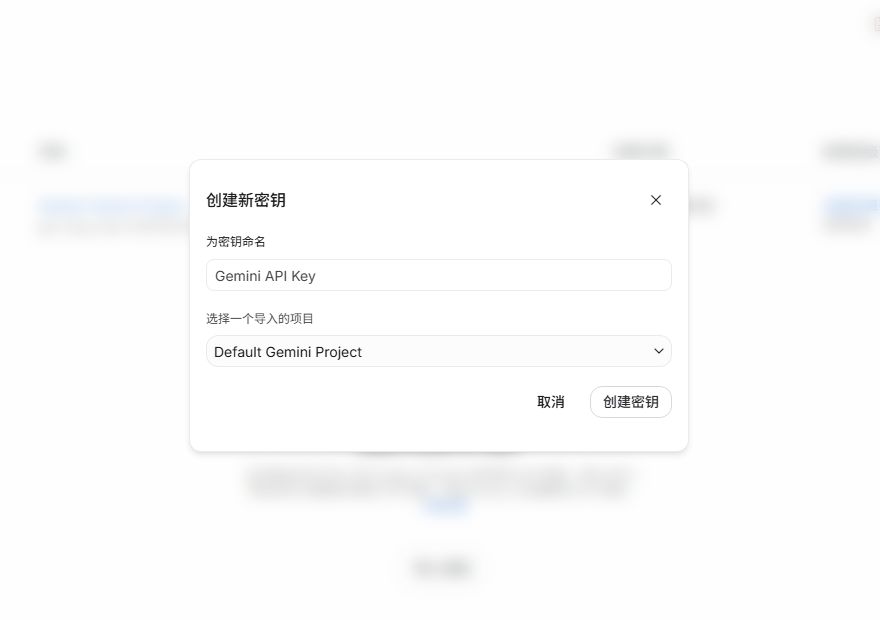
图 2:填写名称并选择项目。截图中的项目名只是示例。 复制一次并安全保存
复制生成的 Key,立即粘贴到 AI伴学。不要启用付费结算也可继续使用 Free Tier,但每日请求量和速率限制较低。应用遇到 429 时会尝试可用的后备模型。
二、申请 YouTube Data API v3 Key
创建或选择 Google Cloud 项目
打开 Google Cloud 项目选择器。选择现有项目,或新建一个仅供 AI伴学搜索使用的项目。创建项目本身不等于开通付费。
启用 YouTube Data API v3
打开 YouTube Data API v3 产品页,确认顶部项目正确,再点击“启用”。
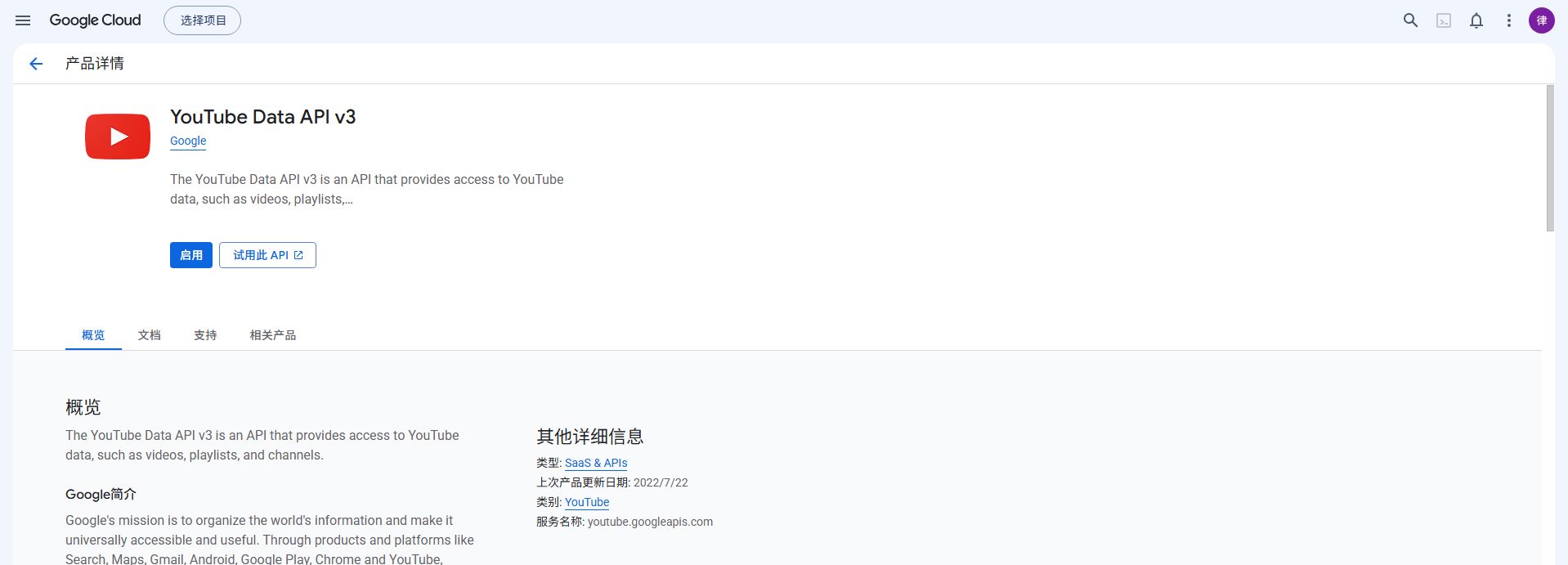
图 3:先选择项目,再启用 YouTube Data API v3。 创建 API Key
进入 API 和服务 → 凭据,点击“创建凭据”→“API 密钥”。这是 YouTube 搜索 Key,不要把 Gemini Key 填在这里。
限制 Key
打开刚创建的 Key,在“API 限制”中选择“限制密钥”,只勾选 YouTube Data API v3 并保存。API 限制可显著降低泄露后的风险。
关键词搜索通常每次消耗 100 点;输入完整 YouTube URL 时,AI伴学直接解析 videoId,并只调用低成本的元数据查询。查看 官方配额成本表。
三、把 Key 填入 AI伴学
- 打开播放页右上角设置。
- “AI 服务商”选择 Gemini。
- 在“API Key”输入 AI Studio 生成的 Gemini Key,点击“保存”。
- 在“YouTube Data API”输入第二个 Key,点击“安全保存”。
- 返回播放页:粘贴完整 URL 可直接播放;输入关键词应返回四个公开视频。
两种 Key 均使用 Android Keystore 加密后保存在本机。AI伴学不会把 BYOK Key 写入对话记录或上传到 gaoerji.net。
四、常见问题
- 提示 429 或达到速率限制
- 免费额度已用完或请求过快。等待配额重置,或在设置中选择另一个可用 Gemini 模型;不要重复点击生成。
- Gemini Key 被拒绝
- 确认 Key 来自 AI Studio、项目地区受支持,且没有把仅限 YouTube API 的 Key 填入 Gemini 输入框。
- 关键词搜索失败,但 URL 能播放
- 通常是 YouTube Data API 未启用、Key 填错、Key 的 API 限制不含 YouTube Data API v3,或每日配额已耗尽。
- 看不到项目
- 确认 Google 账号正确;在 AI Studio 点“导入项目”,或在 Cloud Console 项目选择器中新建项目后再刷新。
- 是否必须开启结算
- 不是。可以保持 Gemini Free Tier 和 YouTube 默认免费配额;免费额度会限制每天可分析的视频数量。