Preparing context
General chat may work, but the AI is not yet grounded in this video.
A LITTLE CURIOSITY. A LOT TO DISCOVER.
Watch, ask, connect the dots. Get to know your AI video study companion—one small step at a time.
Let’s get startedAndroid phones & TVs · English guide · Updated November 8, 2026
Made for curious minds.
GET READY
Your Gemini key is stored encrypted on the device. Provider quotas, supported regions and model access belong to your Google API project. TubePal does not promise unlimited free AI.
FOLLOW YOUR CURIOSITY
https://www.youtube.com/watch?v=VIDEO_ID (replace the placeholder with a real ID).General chat may work, but the AI is not yet grounded in this video.
Ask video-specific questions. Check the original moment when accuracy matters.
Context is AI-generated learning material, not a complete subtitle download. Some frames, spoken words, formulas or details may be missed. Public does not always mean embeddable or analyzable.
TALK IT THROUGH
Tap the vertical waveform beside Send to start voice conversation. Allow microphone access when Android asks. Wait for the Live connection status, then speak. Tap the waveform again to stop.
“Explain the idea at this point in simpler words.”
“Go forward 30 seconds.”
“Jump to 4 minutes.”
“Find the chapter about fermentation.”
An absolute timestamp (“jump to 4 minutes”) differs from a relative movement (“forward 4 minutes”). Topic jumps use the available chapters and context; the app may not find a match. Check the player position and confirmation before relying on the result.
Originals and translations are cached locally. Signed-in users can reuse available shared Firebase study material. Unavailable cloud data does not invalidate a saved local copy.
MAKE IT YOURS
A sudden force-stop or missing player telemetry may prevent the very last second from being saved. Switching languages does not mean you need to create a new account.
CLEAR BOUNDARIES
Starting Gemini Live transmits microphone audio to Gemini. Questions, answers, video references and timestamps may be processed by Gemini and synchronized to the authenticated project backend. Firebase stores supported account/history data. API keys are not copied into Firestore.
Use Settings to sign out or delete your account. For deletion without the app, visit the account-deletion page. Public, de-identified video knowledge may remain. See the policy for details.
Privacy policy · Delete accountThis production release uses your own Gemini API key for AI features. Provider availability, free-tier limits and any provider charges apply separately. The app download does not include Gemini usage.
This build does not enable a TubePal paid checkout or TubePal advertising. It does not remove advertising served by YouTube. If monetization is introduced in a future update, the app and store listing will disclose it before use.
A LITTLE HELP
A Live audio connection and video context are different states. Wait for context readiness, then ask a question tied to the current timestamp. A generic answer does not prove video analysis succeeded.
Check the phone’s actual access to Google and YouTube. A working Wi-Fi icon alone is not enough. Review your existing network/VPN setup without disabling security protections. Also check provider availability and the status shown in the app.
Check the quota and model access for the Gemini project owning your key. A model listed in Settings may not be available to your project. Try an available supported model or a shorter embeddable video. Repeated retries can consume more quota. Error 429 commonly indicates a rate/quota limit; it does not prove the key is invalid.
Use headphones, verify microphone permission and check the selected audio mode. The app does not extract the YouTube audio track as an echo-cancellation reference, so perfect speaker echo removal is not guaranteed.
Check Google Play services and try the intended Google account. The Play purchase and TubePal account must match. An unavailable purchase status does not mean you should buy again. Use Restore purchases and contact support if needed.
Email support@gaoerji.net. Include the app version from About, phone model, Android version, approximate time/time zone, the exact error and steps to reproduce. Include a public video link only if you want to share it. Never send full API keys, passwords, purchase tokens, payment-card details or private chat.
BIG SCREEN, SMALL REMOTE
Use the directional pad to move between framed controls, then press OK to activate. The main order is Chapters → Mind map → Search → Favorites → Settings → Player → Fullscreen → Conversation. On the framed player, OK toggles play/pause; Right enters supported native YouTube controls and Back returns to the player frame. Native controls vary by YouTube player version.
Frame the text input first, press OK to edit, and press Back to finish editing and return to the frame without sending. Use Up/Down to move to another control; select Send and press OK when ready.
A remote’s voice key may belong to the system assistant. It is not guaranteed to send microphone audio to TubePal. Where the system search integration is supported, choose the TubePal result card. For continuous AI conversation, select an available microphone in the app and activate the waveform.
A TV far-field microphone can work as an app input only if the TV exposes it to Android apps. A system notice that far-field assistance is off can mean the app has taken over recording. It does not prove an error. Loud video audio can still be mistaken for your voice: use headphones or the speaker pause/mute options. TubePal does not bypass device security or extract YouTube PCM for perfect echo cancellation.
HEAR EACH OTHER CLEARLY
SAY WHAT YOU WANT TO DO
Speak after listening starts. Playback commands use a specific text confirmation without an additional spoken confirmation. A transcript alone does not prove the player accepted a command; check the confirmation and position.
Commands depend on recognized language, available player capabilities and model connectivity. Do not rely on voice control for safety-critical work.
ON A REAL PHONE
Actual English screens from TubePal AI on a Vivo phone. Tap an image to inspect it. These are unretouched captures, not interface mockups.
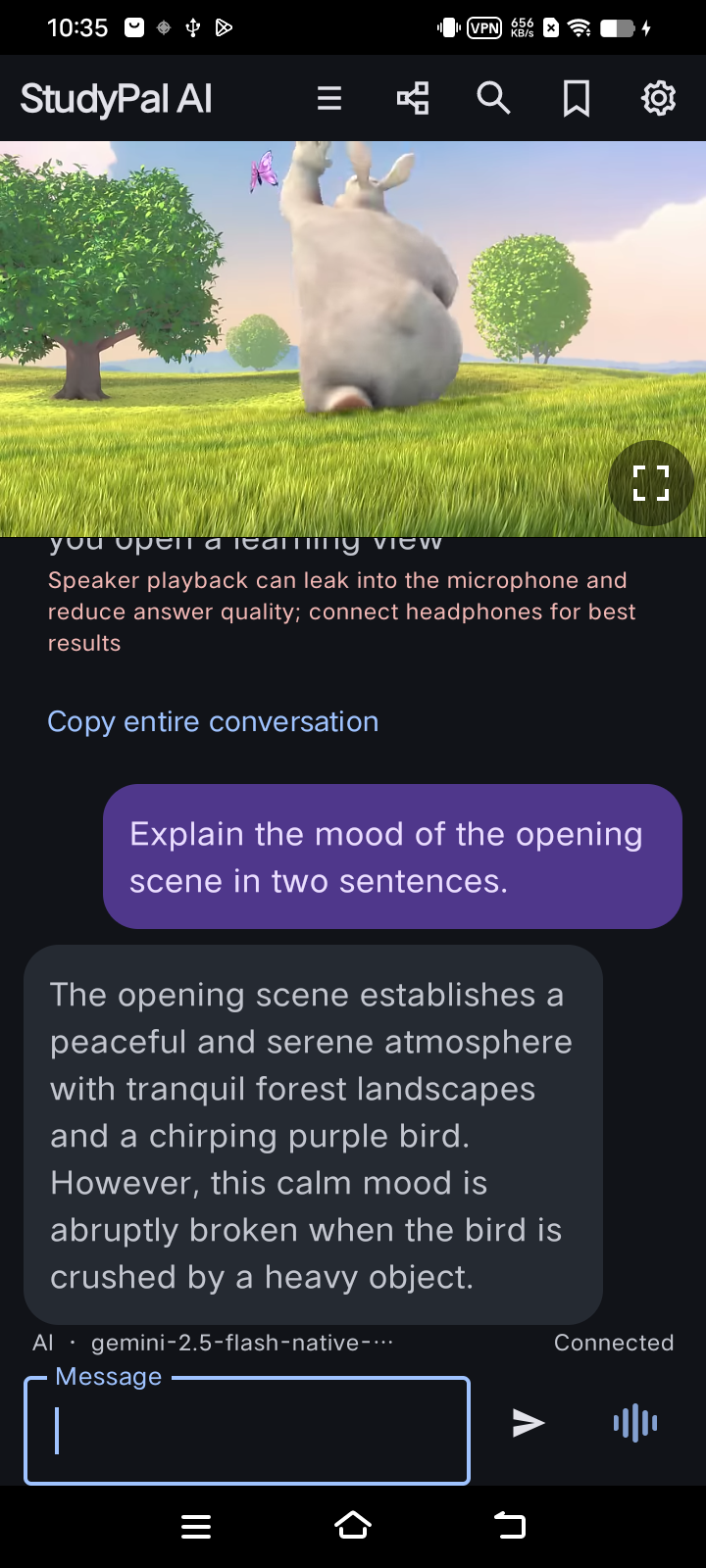
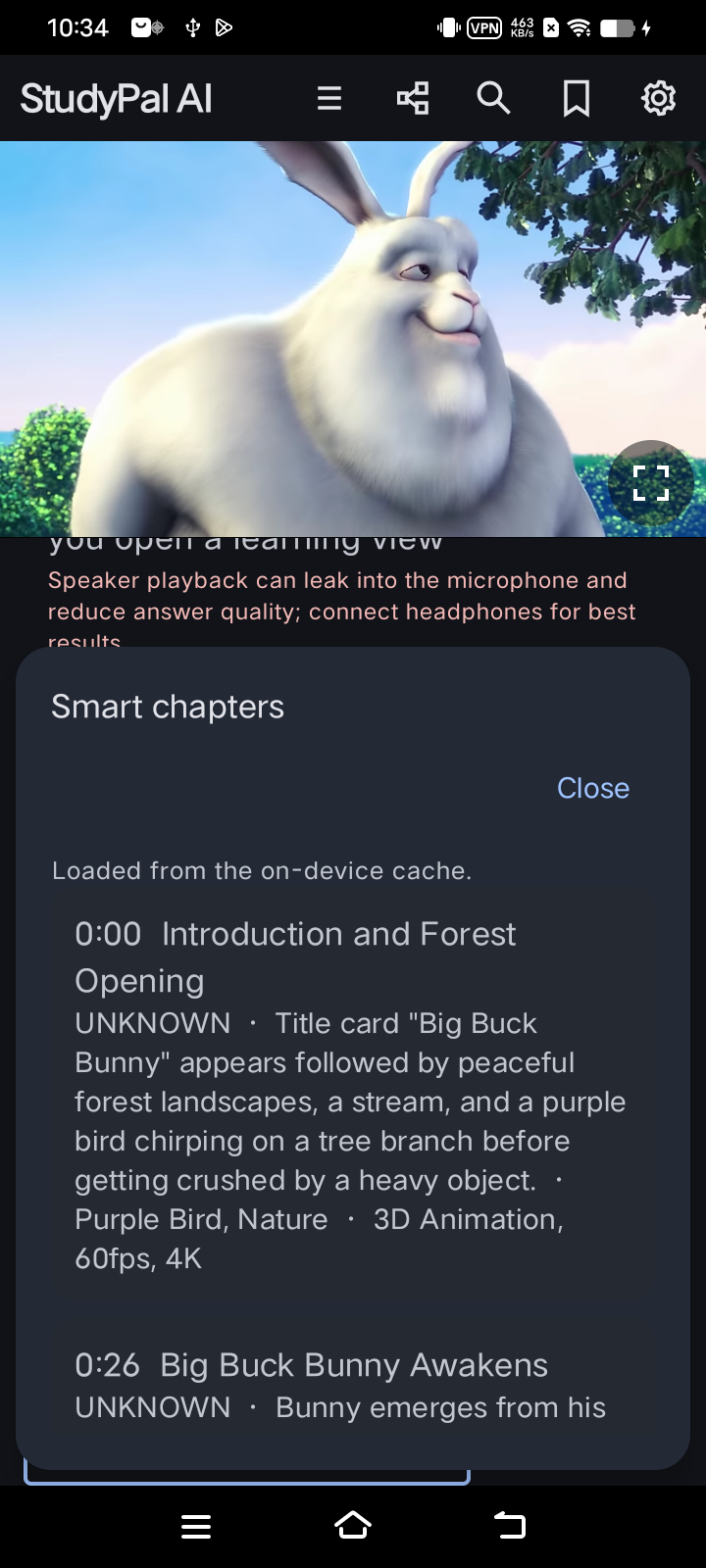
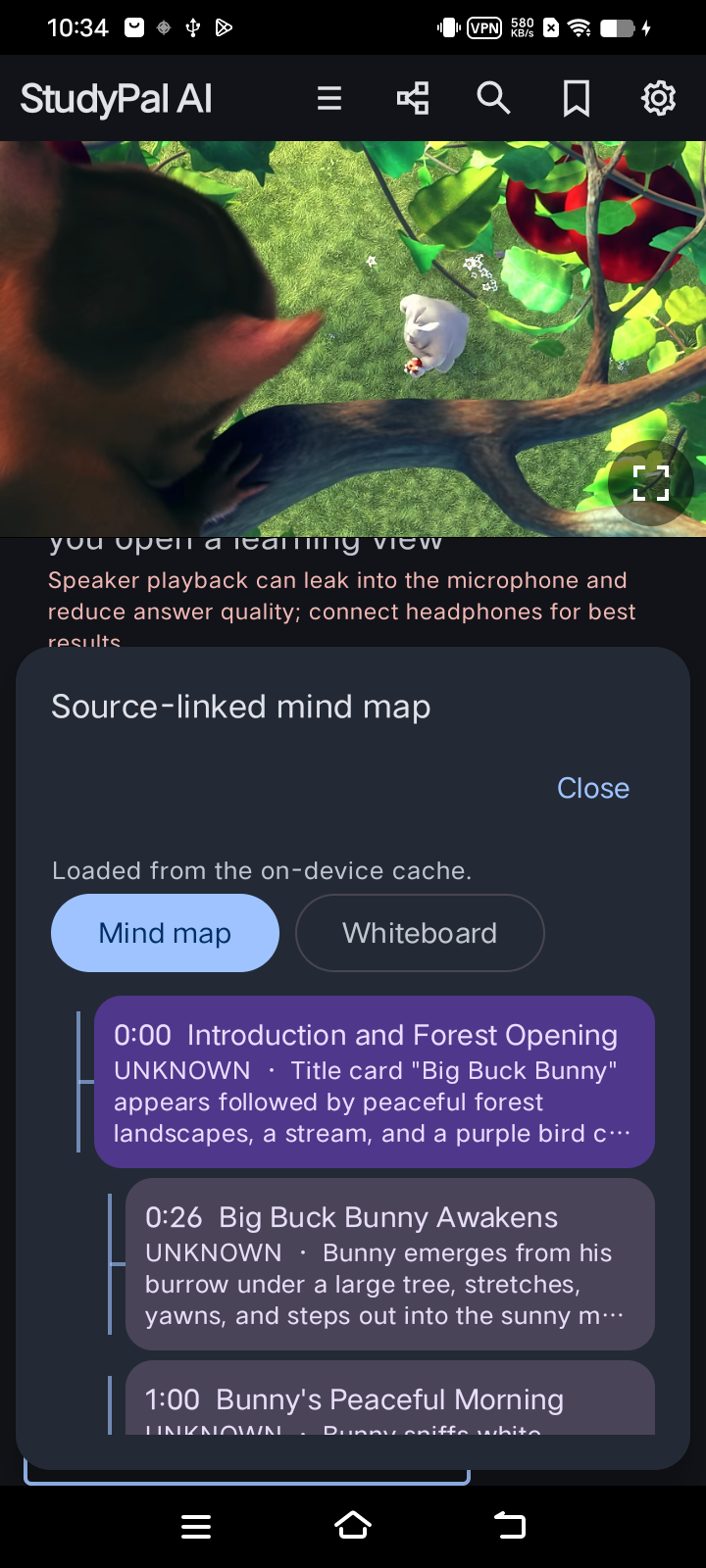
Generated material can be incomplete or wrong. UNKNOWN marks unclear evidence; it is preserved rather than replaced with invented information. Check important claims against the video.
Demo film: Big Buck Bunny. (c) copyright 2008, Blender Foundation / www.bigbuckbunny.org. CC BY 3.0. No endorsement by Blender, YouTube or Google is implied. UI screenshots do not download or extract the film.
Discuss a video, share a learning tip or report a problem. 请勿公开 API Key。 Join TubePal AI on Discord · 加入官方频道